WooCommerce Automatic Order Printing Software For Restaurants
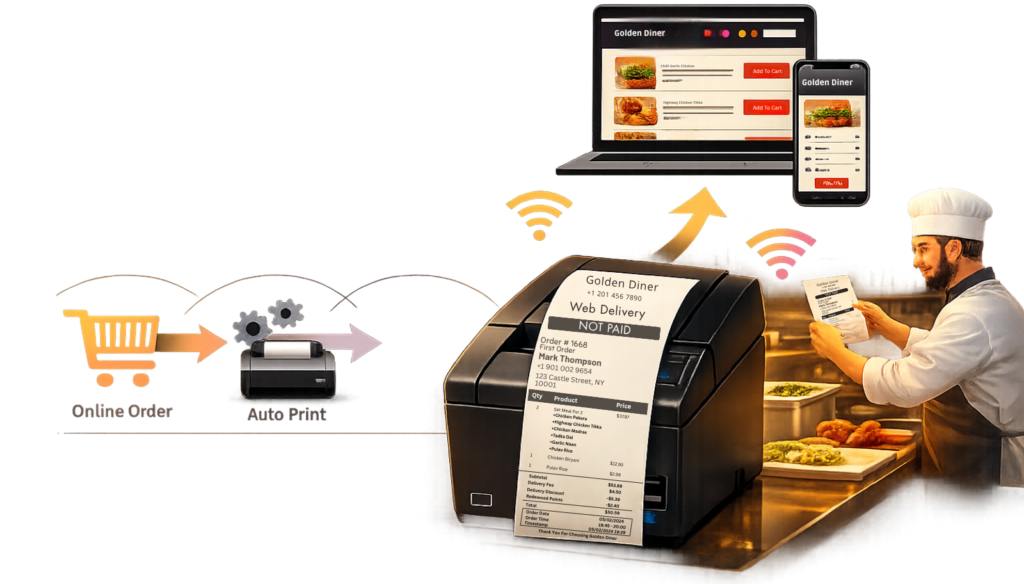
Real-time automatic WooCommerce order printing Windows based software for restaurants, takeaways, cafés and, cloud kitchens.
Real- Time Printing
Many WooCommerce printing solutions depend on WP-Cron, which can delay or miss prints. Our software does not. Orders are printed instantly the moment they are received, so your kitchen can start preparing without delay.
Lightweight & Cost Effective
Skip the need for Extra WooCommerce printing plugins and third-party services like PrintNode. Our software handles automatic order printing directly, with no added subscriptions or unnecessary costs.
End- Of- Day Sales Overview
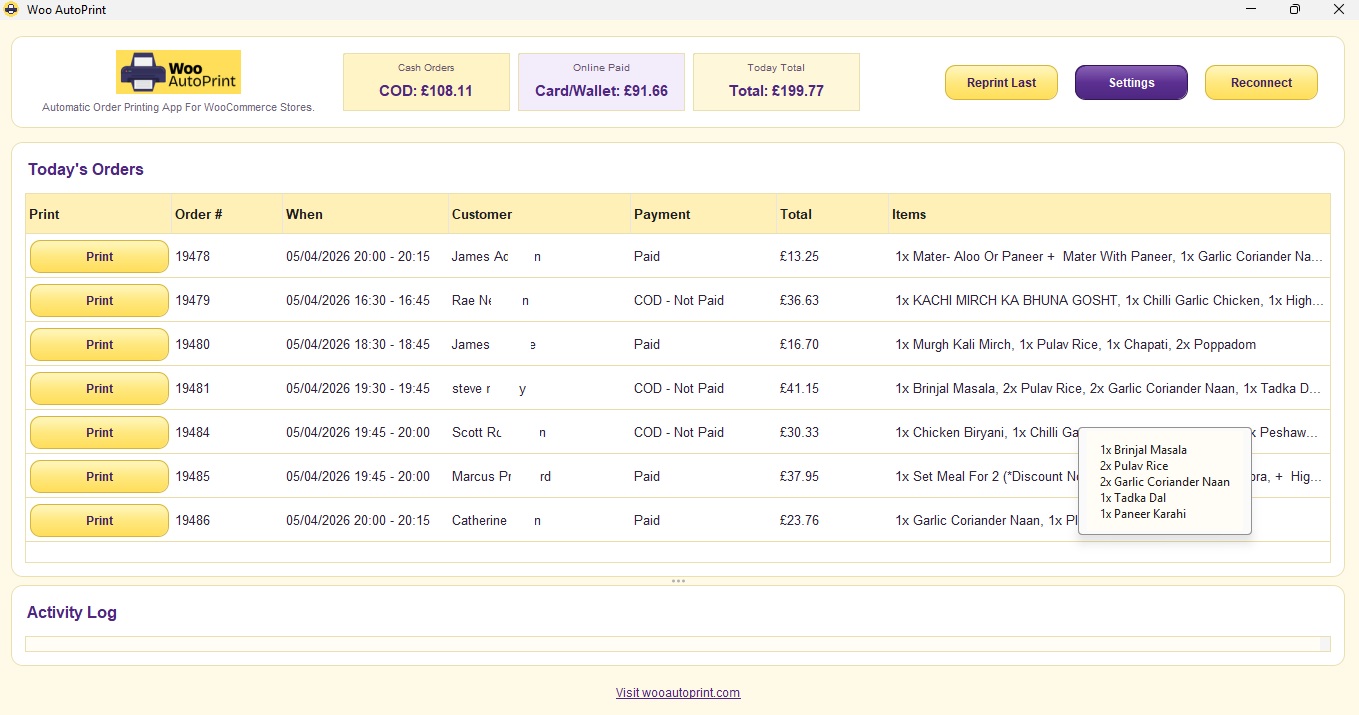
See your cash sales, card/apple pay/google wallet sales and, total sales, helping you close the day with confidence. The application is compatible with all payment processors honored by WooCommerce.
Smart Multi-Printer Setup
Use a primary and secondary printer to send orders to different locations, such as the kitchen and front counter. Prefer one printer? Set both to the same device and print two copies automatically or, leave secondary empty to receive one copy. Supports both 58mm & 80mm thermal printers.
Easy Order Reprints
Access and instantly reprint previous WooCommerce orders from the day whenever necessary, without waiting or searching through paperwork. Whether for kitchen, records, or an extra customer copy.
Works With Existing Printers
Use your existing thermal printers without needing expensive new hardware or complicated changes to your setup. This makes it easy to start automatic WooCommerce order printing without changing your existing setup.
How It Works
Getting started with WooAutoPrint is simple. Our Windows-based WooCommerce automatic order printing software is designed for restaurants that want a smooth, dependable setup without technical hassle. From installation to live printing, everything is straightforward, so you can connect your store, set your printers, and let the software handle orders automatically.
Step 1: Install on Your Windows Machine
Install the software on you restaurant computer, till or, order management machine in just a few steps.
Step 2: Add Your Business Details
Enter your restaurant name, phone number & footer text exactly how you want them to appear on printouts.
Step 3: Connect WooCommerce Securely
Paste in your WooCommerce Consumer Key and Consumer Secret to connect with the software.
Step 4: Choose Your Printers
Select your primary and secondary printers and assign the correct paper size for each setup.
Step 5: Let the Software Handle the rest
As soon as an order comes in, the software checks the payment method and verifies the order before printing.
Step 6: Instant Printing For CASH ORDERS
Cash orders are printed right away, helping your team act immediately and kitchen staff start preperations.
Step 7: Verified Printing For Card Orders
Card orders are only printed after payment has been successfully confirmed.
Step 8: Failed Orders Are Automatically Ignored
Unsuccessful or failed orders are skipped, reducing confusion and avoiding unnecessary prints.
Step 9: Monitor Daily Sales at a glance
View Cash Sales, Card Sales, and Total Sales for the day directly in the software for a clear day-end picture.